hDrop Integration with TrainingPeaks
To connect your hDrop Account to TrainingPeaks please follow these steps:
- Ensure you have the most recent hDrop App version. The TrainingPeaks integration is available for hDrop App version 0.46.2 or newer.
- In the hDrop App navigate to Account > Connected Apps > Training Peaks
- Tap Link Training Peaks Account
- Tap Link a new account
- Enter your TrainingPeaks credentials to log into an existing TrainingPeaks account, or create a new TrainingPeaks account
- Grant permission to hDrop Technologies to communicate with TrainingPeaks by clicking Allow
- Your account should now be linked.
To view your data in TrainingPeaks:
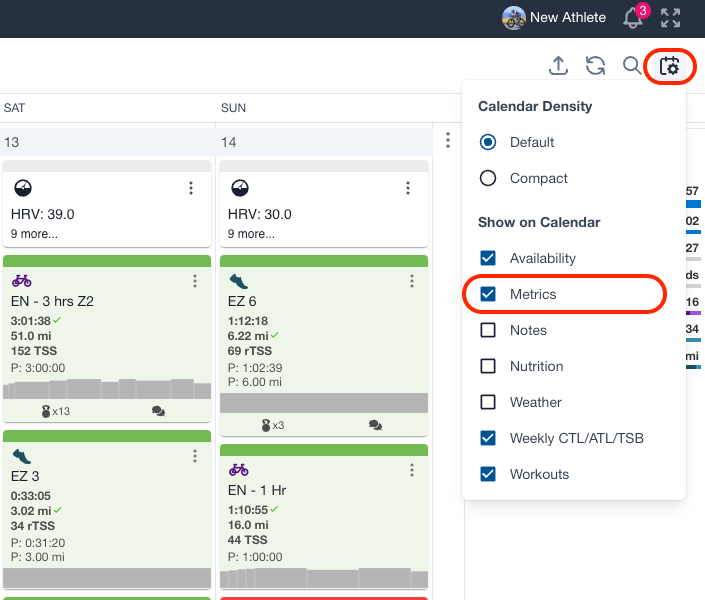
- Your hDrop Sweat Sensor data will display as a Metrics card on your ‘Calendar’ view. The hDrop data will also appear as a workout note inside your TrainingPeaks activities. To ensure the data shows up in TrainingPeaks, you must use the hDrop device during the same date and time range as the corresponding TrainingPeaks activity.
To get the detailed graphs:
- The hDrop can write data into your Garmin FIT file via the Garmin data field. If you use a Garmin device and enable the hDrop Scores data field during your activities, you will record real-time hydration metrics (sweat loss, sodium loss, and hDrop score) and you will be able to view the graphs in TrainingPeaks Advanced Graphs.
- Important: The Garmin hDrop Scores FIT data uses a lightweight algorithm, so total losses may differ slightly from the hDrop App’s final results. For your session summary, treat the hDrop App final results (and the metrics card sent to TrainingPeaks) as the most accurate.
Please Note:
- If you cannot see your data on your TrainingPeaks calendar please ensure that you have ‘Metrics’ enabled in your Calendar Settings.
- hDrop workouts completed after the date you link your TrainingPeaks account will automatically sync
- You may notice that saving an hDrop workout takes a few additional seconds (sometimes up to 1 minute).